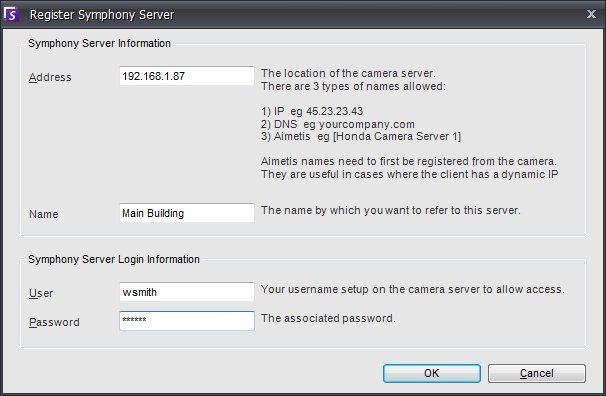
New Symphony Server Registration
allows Symphony Client to
connect to a Symphony Server
over a network. You need at least one server registered.
Address
Enter the address of the Symphony Server you want to connect to. You can enter the IP address of the Symphony Server, or the Symphony Dynamic name, which was defined during installation. Aimetis provides support for Symphony Servers that are on dynamic IP addresses. Dynamic names must be enclosed in square brackets (see examples below). If you do not enclose the name in square brackets standard DNS resolution will be attempted. If the Symphony Server is running on a nonstandard TCP port, you can suffix the address with a colon followed by the TCP port number. If you do not suffix with a port, it will try the default port, 50,000. Here are some examples of valid addresses:
|
Address |
Description |
|
symphony1.toyotacentral.com |
standard DNS |
|
65.43.45.25 |
IP address |
|
[constructix] |
dynamic name |
|
jakescomp.fire.com:9080 |
standard DNS with TCP port |
|
[constructix2]:80 |
dynamic name with TCP port |
Note: Symphony Servers listen on port 50,000 to remain invisible
to the plethora of port scans. Most port scanners do not scan ports this
high. Once the Symphony Client connects on port 50,000 (assuming
the default port was not changed), it will receive the other ports to
connect to (for more information on ports and firewalls, visit Firewalling
your server).
Name
This is the name that will appear in Symphony Client for this
address. This information is not actually used to connect. Type any
descriptive name here.
User
A username with access to connect to the server.
Password
The password that is set up for the User.