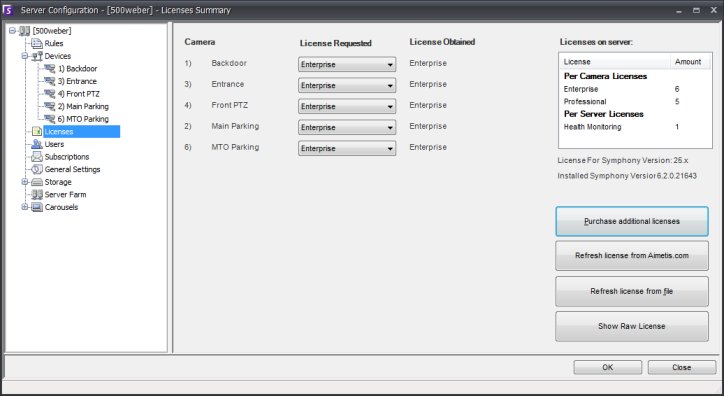
The Licenses dialog allows you to specify which License to run at which camera. To access the license dialog, click Server > Configuration and then select the Licenses pane.
The Licenses Summary dialog indicates counts of each license type per server. To modify license settings for a particular server click on the server in the Licenses tree to the left. The Licenses pane for that server appears which details how many licenses are available and what type of license is applied per camera. License types can be changed between cameras by adjusting the combo box adjacent to each camera. If the Licensed Requested field does not equal the License Obtained field, this indicated that this license was not available.
Purchase additional licenses This will link you to the Aimetis Xnet where you can login to your account and obtain additional licenses.
Refresh license from Aimetis.com If a newer license is available for your server, clicking this will force Symphony to download the latest license file (you must have internet connectivity for this option).
Refresh license from file If you have a Symphony server without internet access, or otherwise unable to automatically download a new license, using this option allows you to download the license and then manually apply it to the server.
Show Raw License will display the raw license in XML.
In a Server Farm, the entire farm shares one license file. All cameras and licenses will be summarized as if it were one physical server.
 For
more information on the different Symphony product versions and there
associated features, please visit Symphony Server Licensing. For help on
using the Aimetis Xnet and managing your server licenses, visit http://www.aimetis.com/xnet/help.aspx
For
more information on the different Symphony product versions and there
associated features, please visit Symphony Server Licensing. For help on
using the Aimetis Xnet and managing your server licenses, visit http://www.aimetis.com/xnet/help.aspx